
We have all wondered exactly when our days of youthful vigor turned into a life lived by a to-do list stuck on our fridge. We all inevitably have to end such musings with a sigh, check off "get more eggs" then go on to "pick up the laundry." What we can do however, is to make that list more convenient and more helpful.
If you are ready for something a little more 21st century than that writing pad on your fridge, eM Client is here for you! This product's task management tool is the central storage of all your tasks, it can remind you of your duties with automatic alerts, and keep track of the progress of your various activities. The default Detail view now also utilizes the famous 'Getting Things Done' methodology to help you with your tasks.
A default task folder is prepared for you when you create your account. You can access it by clicking the Tasks bookmark in the left-most vertical panel of the eM Client's interface.
A new sub-panel will open, containing the hierarchical tree of your task folders:
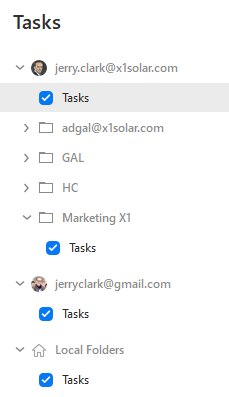
In this panel you can customize and manage your task folders. You can create new task folders, rename or delete existing ones. All this is accomplished via right-clicking and selecting the desired option from the context menu.
If you click on any of your task folders in this panel, the central panel will switch to a task list view of the chosen task folder. In this view you can see all the tasks from the given task folder and you can also create new tasks and edit/delete existing ones here.
Creating Search Folders for Tasks
It is possible to create a search folder from relevant search process by right-clicking on the down-pointing arrow next to the search bar and selecting Create Search Folder... from the context menu.

Please, note that this is the only way, how to create search folders for Tasks.